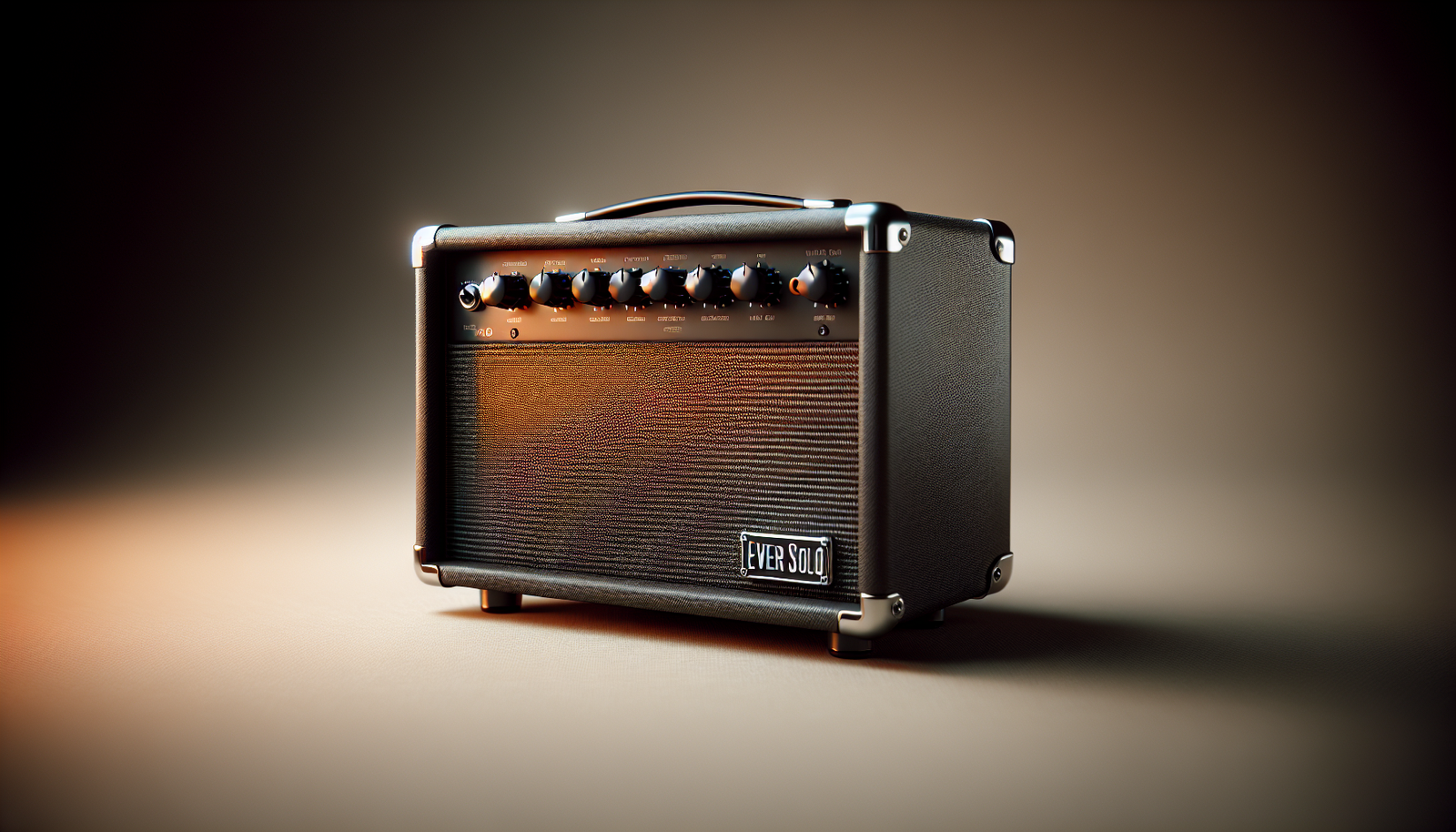
Want to get the best possible performance from your Eversolo Amp F10?
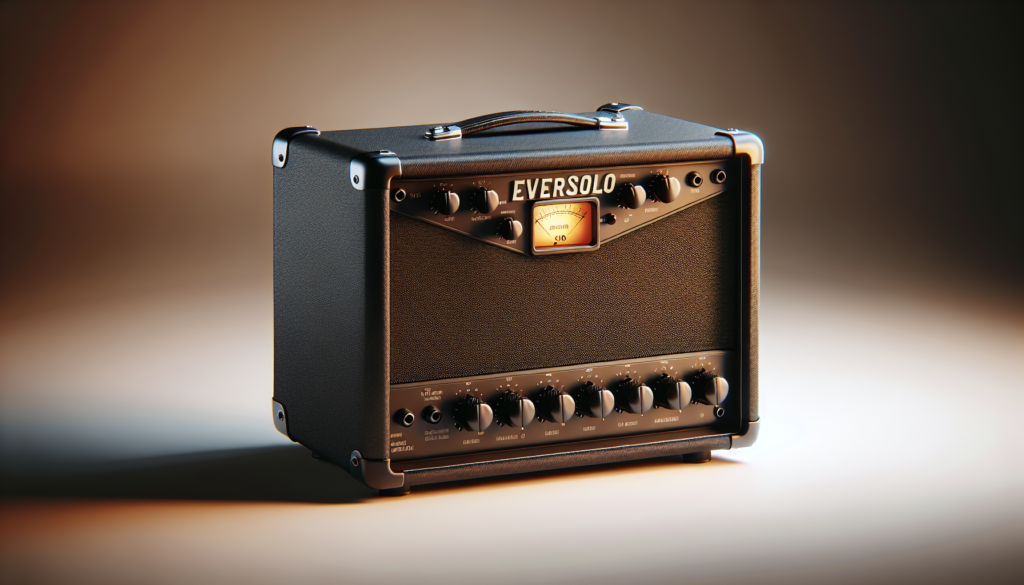
Eversolo Amp Performance Guide
This guide gives you practical, step-by-step advice to configure, optimize, and troubleshoot the Eversolo Amp F10 so you can enjoy the cleanest sound, lowest noise, and best pairing with your headphones or speakers. You’ll find setup tips, matching recommendations, measurement basics, and accessory suggestions that apply whether you’re new to desktop amps or fine-tuning an advanced system.
Overview of the Eversolo Amp F10
This model is designed as a compact, user-friendly amplifier for desktop listening setups. It typically functions as a headphone amplifier and preamplifier, offering clean gain, low noise floors, and straightforward controls. The F10’s strengths are ease of use and solid output performance for a wide range of headphones and active speakers.
You should treat the F10 as a central piece of your listening chain: the source, cables, and headphones or powered monitors all interact with the amp to shape the final sound.
What the F10 does for your system
The F10 provides the necessary voltage and current to drive headphones and act as a volume-controlled preamp for powered speakers or an external power amplifier. It reduces distortion and noise relative to weak built-in headphone outputs and gives you finer control over gain and level.
You’ll notice improved dynamics, clearer low-level detail, and a more stable soundstage when the amp is matched correctly to the rest of your system.
Quick start: hooking up the F10
Follow these steps for a reliable start:
- Place the amp on a stable surface with adequate ventilation.
- Connect your source (PC, DAC, streamer, phone, or CD transport) to the F10’s line input using a quality RCA or single-ended cable. If the F10 has a USB or optical input and you’re using digital sources, connect to your DAC or use the digital input as per the manual.
- Connect headphones to the headphone output, or connect powered speakers to the line-level outputs if you want to use the F10 as a preamp.
- Power the unit with its supplied adapter or approved power supply.
- Start with the volume low and the gain in the default position, then slowly increase volume while playing familiar music.
You’ll avoid surprises and protect your hearing and speakers by powering up with conservative settings.
Understanding the controls
Most controls you’ll encounter on the F10 are straightforward: input selector, volume knob, gain switch, and possibly tone or filter switches. Here’s what each typically does and how you should use them.
Volume
The volume knob sets output level. Use it in combination with the gain switch to achieve a comfortable listening level while maintaining good signal-to-noise ratio. For daily convenience, set volume to a mid-range position and use source-level adjustments for fine control when needed.
Gain switch
Gain alters the amplifier’s sensitivity. Use lower gain for sensitive IEMs and high-sensitivity headphones to avoid noise and to allow fine control at low volume. Use higher gain for low-sensitivity, high-impedance headphones to reach louder listening levels without hitting maximum output.
Input selector
Select the matched input for the source you’re using. Labeling on the front will match the rear jacks. Keep cassette or line-level devices on the line input; digital sources should go through a DAC to the amp’s line in unless the amp has an internal DAC.
Filters and tone controls (if present)
If the F10 includes bass, treble, or filters, use them sparingly. They’re useful for compensating room or headphone irregularities but can mask source or headphone characteristics. A neutral baseline is best for evaluating performance.
Matching headphones to the F10
Matching depends on two main headphone specs: impedance (ohms) and sensitivity (dB SPL/mW). Use the table below to pick the right gain and expected volume behavior.
| Headphone Type / Example | Impedance (Ω) | Sensitivity (dB SPL/mW) | Recommended Gain Setting | Expected Volume Behavior |
|---|---|---|---|---|
| IEMs / Very Sensitive | 8 – 32 | 100+ | Low gain | Very loud at low volume; set volume low |
| Portable High-Sens | 16 – 80 | 95 – 105 | Low to medium gain | Comfortable mid-volume; low noise floor |
| Studio / Neutral | 32 – 300 | 90 – 100 | Medium gain | Requires more voltage; mid-to-high volume needed |
| High-Impedance Totems | 250 – 600 | 85 – 95 | High gain | Needs significant voltage; watch thermal limits |
| Planar Magnetic | 20 – 120 | 85 – 100 | Medium to high gain | Higher current demand; check amp’s current capability |
These are broad guidelines. If your headphones have low sensitivity and high impedance, you’ll need higher gain and possibly more power headroom. If they’re sensitive, use low gain to keep hiss and background noise down.
Getting the best sound: source and DAC pairing
The amp is only one link in the chain. A clean, high-quality source and DAC will let the F10 perform at its best.
- Use lossless files or streaming at high bitrate (e.g., FLAC, 320 kbps+ or lossless streaming tiers).
- Prefer a dedicated DAC rather than the computer’s onboard audio. A DAC with low jitter and clean analog output will reduce noise and improve clarity.
- If you use a USB DAC, choose a high-quality USB cable and keep cable lengths reasonable. Ground loop noise can appear with certain USB connections; try a different USB port or a ground isolator if you hear hum.
Cabling and grounding
Good cables matter, but they won’t fix a poor amp or source. Use shielded interconnects to reduce RF/hum pickup and solid headphone cables for minimal signal loss.
- Keep interconnects away from power supplies and Wi-Fi routers.
- If you notice hum with powered speakers, check ground connections. A ground lift (on the speaker end, if safe and built-in) or isolating the amp’s ground can help, but follow safety guidance in the manual before altering grounding.
Reducing noise and hiss
Hiss comes from high gain settings, sensitive headphones, poor source grounding, or noisy power supplies. Here’s how to mitigate it:
- Use the lowest gain setting that still gives you comfortable volume.
- Improve the source signal with a high-quality DAC and cleaner line level output.
- Try different interconnects; poor shielded cables can pick up noise.
- If the F10 has a balanced output and your headphones support balanced connections, balanced can lower noise in some setups.
- Use the amp’s input that isolates noise best—some units have a buffered or higher-isolation input.
Listening tests and burn-in
While burn-in remains debated, you should spend time listening to the F10 across musical genres to become familiar with its voicing. Use familiar tracks with a wide dynamic range and clean production to evaluate:
- Bass control and extension
- Midrange clarity and presence
- Treble accuracy and sibilance
- Stereo imaging and soundstage size
Record your impressions at different gain and volume settings. If you try burn-in, do it with music at moderate volumes for dozens of hours; but don’t expect radical changes—most useful improvements come from source and headphone matching.
Objective measurements you can run
If you want to measure performance, a few basic tests give you insight into the F10’s real-world behavior. You’ll need a measurement microphone or loopback tools, and a measurement app (Room EQ Wizard, ARTA, REW) and possibly a dummy load or test headphones.
- Frequency response: Use a line-level loop or a measurement mic for speaker setups. Look for a flat response across audible frequencies.
- THD+N (Total Harmonic Distortion + Noise): Use a sine sweep into a dummy load to check distortion at various output levels.
- Noise floor: Measure with the input grounded or with a high-attenuation passive load to determine background noise in dB(A).
- Output power: Use a dummy load to measure RMS power at given THD thresholds into representative headphone impedances.
If you’re not measuring yourself, online reviews or lab measurements can give a benchmark for the F10’s expected specs. Remember that perceived sound depends on your listening environment and headphone choice.
Practical volume and gain settings for common scenarios
Use this quick guide as a starting point for real listening:
- Low-sensitivity planar headphone (e.g., 90 dB, 70 Ω): Set gain to medium-high, start volume at 25–40%, increase to 60–80% for louder listening.
- High-sensitivity IEM (e.g., 110 dB, 16 Ω): Set to low gain, start volume at 1–5%, adjust carefully.
- Average closed-back dynamic (e.g., 96 dB, 32 Ω): Medium gain, start volume 10–40% for typical indoor listening.
Brand and model variations mean you should adjust by ear for comfort and low distortion.
Tone shaping and equalization
If you want to alter tonality:
- Start with an all-flat signal (no EQ) to hear the amp’s natural balance.
- Apply a gentle parametric EQ for bass or treble issues rather than steep shelving filters.
- Use room correction for speakers when the F10 is used as a preamp.
- If you use tone controls on the F10 or external EQ, make small changes and listen for masking or unwanted artifacts.
Remember: subtle corrections are often more musical than large EQ boosts or cuts.
Using the F10 as a preamp with powered speakers
If you connect powered speakers to the F10’s line output:
- Use the F10’s preamp output (line out) rather than the headphone out to avoid impedance mismatch and to preserve volume control accuracy.
- Set speaker input sensitivity appropriately and start with low volume on the amp.
- Keep the F10 and powered speakers on different surfaces if vibration is an issue.
- For best noise performance, use balanced connections if your speakers and the F10 support them.
Troubleshooting common problems
Below is a table of common issues you might face and step-by-step suggestions to resolve them.
| Symptom | Likely cause | Steps to fix |
|---|---|---|
| No sound | Mismatched input or muted source | Check source output, input selector, cables, and volume knob on the F10 |
| Hum or buzz | Ground loop or bad cable | Try different mains outlet, swap cables, unplug other nearby devices, use ground lift if safe |
| Hiss with sensitive IEMs | High gain or noisy source | Lower gain, use a cleaner DAC, try balanced output if available |
| Distortion at high volume | Amp clipping or headphone power limits | Lower volume or gain, ensure headphone impedance matches amp drive capability |
| Intermittent dropouts | Faulty cable, loose connector, or source issue | Inspect connectors, replace cables, test with another source |
| One channel quieter | Bad cable, unbalanced source, or amp fault | Swap left/right inputs, change cables, test another pair of headphones |
If basic steps don’t fix the problem, consult the user manual and consider manufacturer support.
Maintenance and care
Keep the F10 clean and dry. Regular maintenance tips:
- Dust the enclosure and knobs with a soft cloth.
- Avoid cleaning agents that could damage finish or electronics.
- Keep ventilation clear to avoid overheating.
- Turn the unit off during extended inactivity.
- If you notice oxidized jacks, use contact cleaner cautiously and follow manual guidance.
Firmware and updates
If your unit supports firmware updates (more common on devices with DACs and digital inputs), check the manufacturer website for update instructions. Firmware updates can add features or fix bugs but follow provided steps precisely to avoid bricking the device.
Accessories that improve performance
Certain accessories can yield noticeable improvements:
- Quality interconnects for lower noise and better signal transfer.
- Balanced cables and adapters if both amp and headphones support balanced connections.
- A high-quality DAC to provide cleaner line-level input.
- Isolation feet or platforms to reduce vibration for desktop setups.
Spend on what matters most to your listening chain: a better source or headphones usually yields more audible improvement than pricey cables.
Using the F10 with other audio gear
You can use the F10 in many system configurations:
- As a headphone amp connected to a standalone DAC: connect DAC line out to F10 line in.
- As a preamplifier for powered speakers: connect F10 line out to the speaker’s input.
- Integrated into a hi-fi with a separate power amp: use the F10 pre-out to feed the power amp, controlling volume from F10.
- Paired with mixers or instruments (if allowed by the F10’s input specs): keep levels appropriate and avoid overdriving inputs.
Always check input level compatibility to avoid distortion.
Measuring improvement after changes
When you change cables, sources, or settings, compare directly:
- Use the same track and volume level for A/B comparisons.
- Allow a few moments to adjust to the sound before judging.
- Note differences in clarity, bass control, staging, and noise.
- Use short reference tracks you know well to highlight changes.
Document your preferred settings so you can quickly return to them.
Safety and warranty considerations
- Don’t open the unit unless you have explicit permission and technical skill. Internal capacitors and components can be dangerous.
- Use only the supplied power adapter or manufacturer-approved alternatives.
- Keep the serial and purchase info in case you need warranty support.
- If you see smoke, unusual smells, or hear popping noises, turn off the unit and contact support.
FAQs
Will the F10 power all headphones?
Not necessarily. The F10 can power a wide range of headphones well, but extremely power-hungry headphones or very high-impedance models may need more voltage or current headroom than any small desktop amp can give. Use the gain switch and volume appropriately, and consider a higher-powered amp if you frequently max out output.
Is balanced better?
Balanced outputs can reduce noise and increase headroom in some configurations. If both your DAC and headphones support balanced connections, it’s often worth trying. If not, a solid single-ended setup will still perform well.
How loud is “safe”?
Safe listening levels depend on music and duration. A good rule is to keep average listening levels below 85 dB for extended listening. Use app-based SPL meters or calibrated tools to estimate your level if unsure.
My IEMs hiss—what should I do?
Lower the gain and try a different source or cable. High sensitivity IEMs are more likely to show amplifier noise. Balanced outputs, noise-isolating cables, or a cleaner DAC can reduce hiss.
Final checklist for best performance
- Verify all cable connections and input selections.
- Start with low volume and the lowest necessary gain.
- Use a high-quality source and DAC for the cleanest input.
- Match the gain to your headphone sensitivity and impedance.
- Minimize noise by changing cables, ports, or grounding if hum appears.
- Conduct critical listening tests with familiar tracks and adjust only when necessary.
Closing suggestions
You’ll get the most satisfying results by focusing on the complete signal chain: source -> DAC -> amp -> headphones/speakers. Small tweaks in gain, cabling, and positioning often produce bigger real-world improvements than radical changes in gear. Keep notes of your preferred settings so you can recreate them, and enjoy the clarity and control the F10 can bring to your listening sessions.
If you want, tell me what headphones and source you’re using and the issues you’re hearing. I can give more specific gain, cable, and setup suggestions tailored to your gear.